Microsoft Teams: How to record a meeting
How to record a Microsoft Teams meeting when a meeting starts.
Legal Disclosure:
There are 11 U.S. States that require verbal two-party/all-party consent from each person prior to recording a meeting.
There are 11 U.S. States that require verbal two-party/all-party consent from each person prior to recording a meeting.
These states include: California, Delaware, Florida, Illinois, Maryland, Massachusetts, Montana, Nevada, New Hampshire, Pennsylvania, and Washington.
In addition, two-party/all-party consent is required for anyone residing in the EU, UK, Canada, Singapore, Malaysia, Philippines, Indonesia, Oman, Bahrain, and Australia.
In addition, two-party/all-party consent is required for anyone residing in the EU, UK, Canada, Singapore, Malaysia, Philippines, Indonesia, Oman, Bahrain, and Australia.
How to Record:
To Record, click the ellipsis button > click Record and transcribe > the click Start recording.
To Record, click the ellipsis button > click Record and transcribe > the click Start recording.
Use the dropdown to choose language (default is English) what to record (Video and Audio or just Audio), then press Confirm.
You will see the recording in progress.
How to Stop a Recording:
To Stop the recording, click the more button ellipsis > Record and transcribe >
Stop recording.
Click
Stop.
Leaving a Meeting vs. Ending the Meeting:
There is a Leave meeting button to exit the meeting. If you leave the meeting, the recording will continue until everyone leaves the meeting.
To End the Meeting, use the dropdown from the Leave button to select End meeting.
To End the Meeting, use the dropdown from the Leave button to select End meeting.
Accessing the Meeting Recoding:
One the meeting has ended, it will take a shore time to transcribe and store the recording in the cloud.
When done, all members of the meeting will have a link to access it.
Click the View Recap button to visit the meeting online and view it.
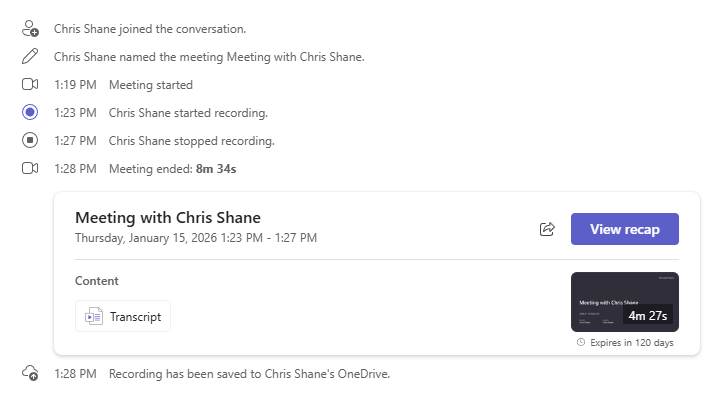
Then click Watch in browser.
Note: Meetings will remain the cloud for 6 months, at which time, Microsoft will delete the recording.
To Download the meeting:
Click Download button and Download.
This
will save as an MP4 to your downloads folder.
Then you can copy it to where you want; Like a folder on the O: drive or even your own OneDrive, which then you could share a link to it.
Related Articles
Microsoft Teams: Teams Meeting Options
Microsoft Teams: Teams Meeting Options Meetings Options There are default settings for Microsoft Teams meetings. However, you can adjust these settings once the meeting is created. Here are instructions on how to do that. Create your meeting as you ...Microsoft Teams: How to update your photo for Teams & Outlook
Microsoft Office: How to update your photo for Teams & Outlook Your photo in Teams is the same as Outlook (and other apps). In Teams meetings, when you do not have your camera on, this photo is shown (if you do not have a photo your initials are ...Microsoft Excel: How to make pivot charts
Microsoft Excel: How to make pivot charts The tutorial shows how to quickly create, filter and customize pivot charts in Excel, so you can make the most of your data. If you’ve ever felt overwhelmed by a large and cluttered spreadsheet, you’re not ...Zoom: Elevating or inviting a call to a Zoom meeting
Elevating or inviting a call to a Zoom meeting If you make a call using Zoom Phone, you can easily convert or elevate the phone call to a Zoom meeting. The other user can be on an external phone service, Zoom desktop client, or Zoom mobile app. Note: ...Microsoft Outlook: How to Connect to Method Shared Calendars
Microsoft Outlook: How to Connect to Method Shared Calendars In Outlook, click on Calendar On the Ribbon, click Add Calendar, click Open Shared Calendar If you know the name of the calendar, you can type in the box, or you can click Name… to open the ...